> ## Documentation Index
> Fetch the complete documentation index at: https://docs.eden.art/llms.txt
> Use this file to discover all available pages before exploring further.
# Discord
> Deploy your Eden agent to Discord servers
Deployments are experimental and currently in private beta. If you're interested in testing it now, please reach out to the devs on [Discord](https://discord.com/invite/4dSYwDT).
Users who have been granted access to the deployment beta will notice a "Deployments" section in each Agent's settings.
## Setup Process
### Create application in Discord
Go to the [Discord Developer Portal](https://discord.com/developers/applications) and create a new application.
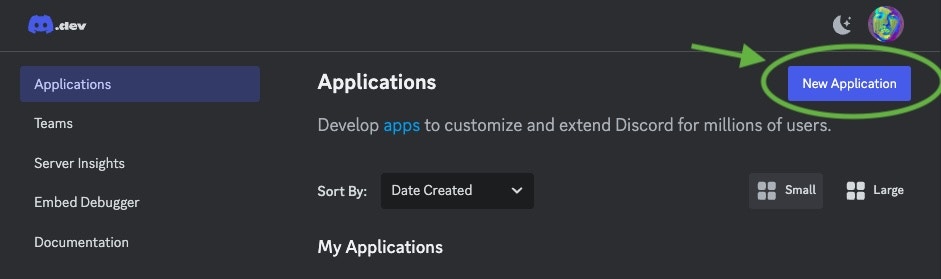 Give your application a name (e.g. "My Agent") and click "Create". For convenience, use the same name as your agent.
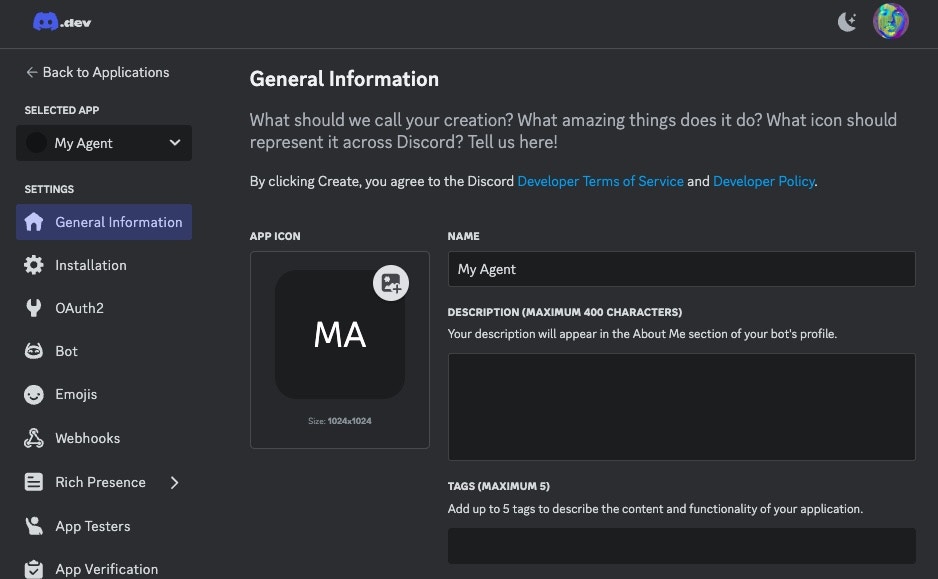
In "General Information":
* Upload your agent's profile image to App Icon
* Click 'Save' to save the changes
Give your application a name (e.g. "My Agent") and click "Create". For convenience, use the same name as your agent.
In "General Information":
* Upload your agent's profile image to App Icon
* Click 'Save' to save the changes
 ### Configure Bot Settings
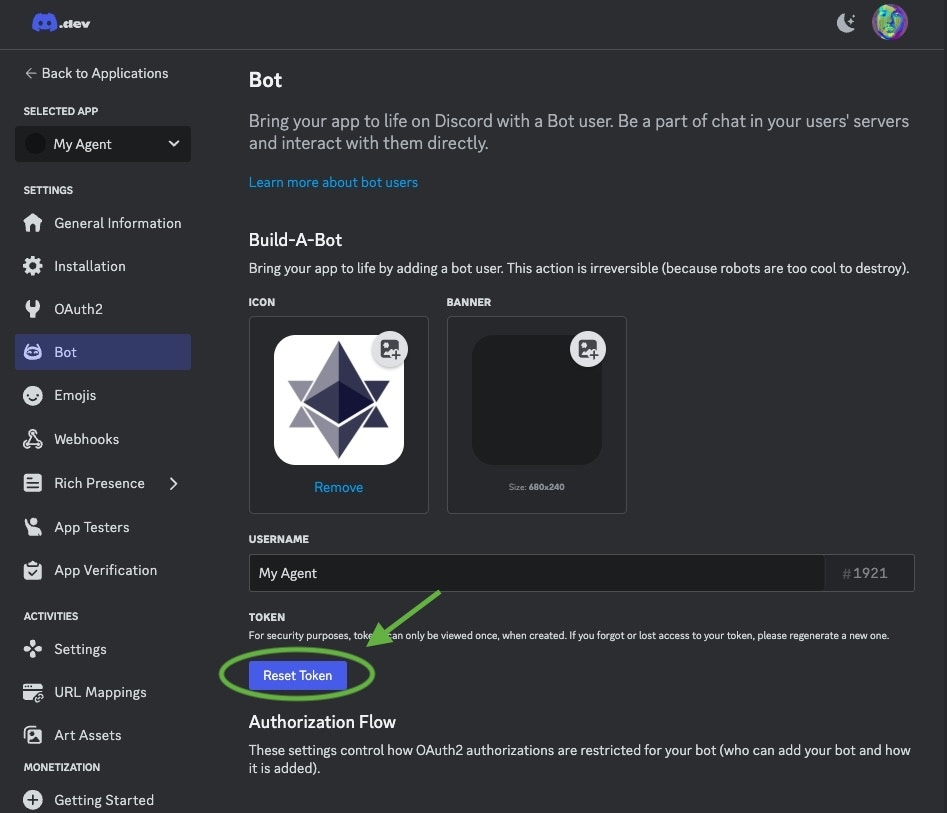
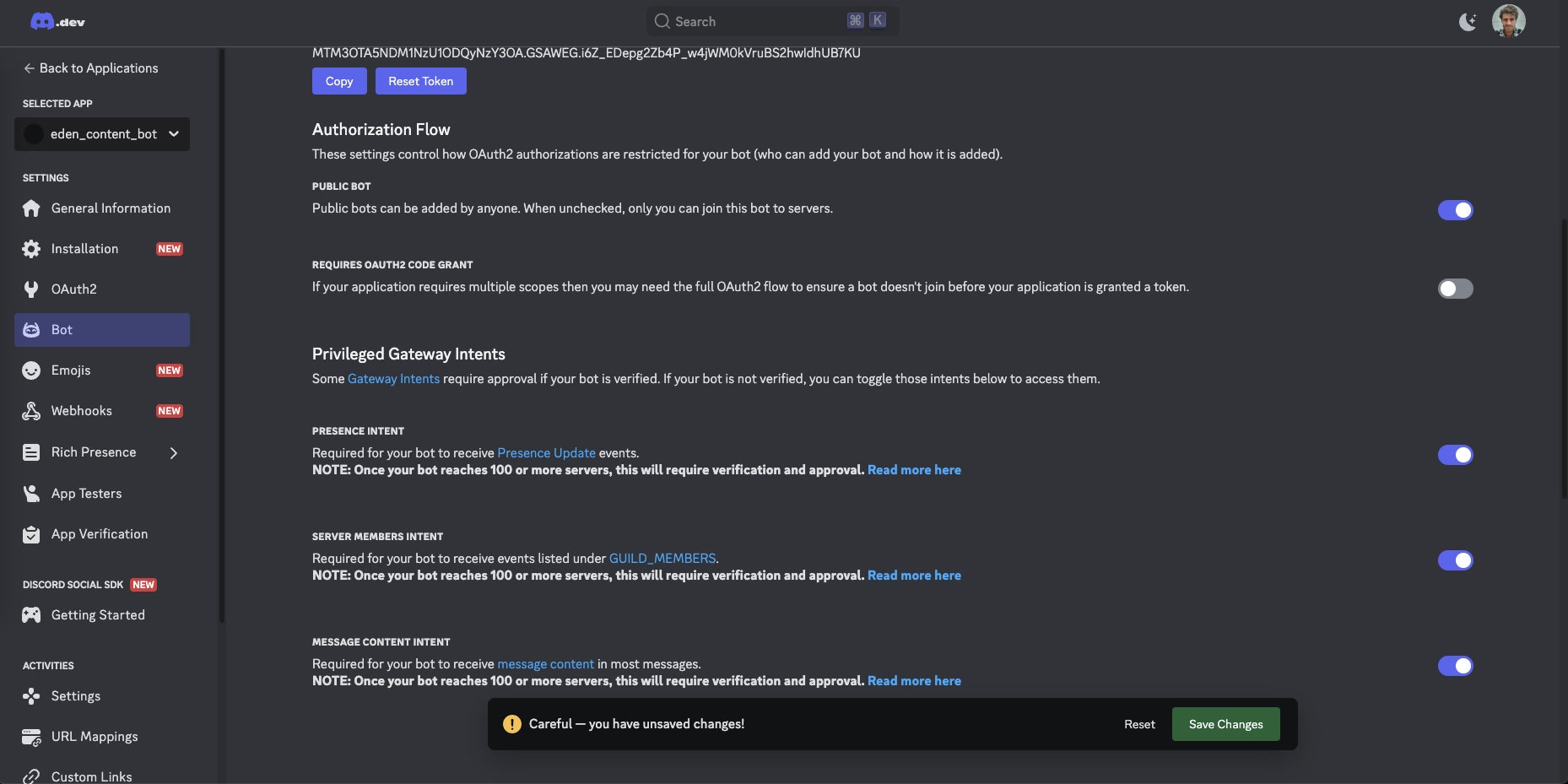
1. Click "Bot" on the left sidebar
2. Click "Reset Token" to generate a new token and copy it somewhere safe
### Configure Bot Settings
1. Click "Bot" on the left sidebar
2. Click "Reset Token" to generate a new token and copy it somewhere safe
 If you ever reset or revoke the token, your bot will stop working. You can always generate a new token and paste it again into Eden.
3. Scroll down to "Privileged Gateway Intents" and enable:
* Presence Intent
* Server Members Intent
* Message Content Intent
Click "Save Changes" after enabling these permissions.
If you ever reset or revoke the token, your bot will stop working. You can always generate a new token and paste it again into Eden.
3. Scroll down to "Privileged Gateway Intents" and enable:
* Presence Intent
* Server Members Intent
* Message Content Intent
Click "Save Changes" after enabling these permissions.
 ### Configure Eden Deployment
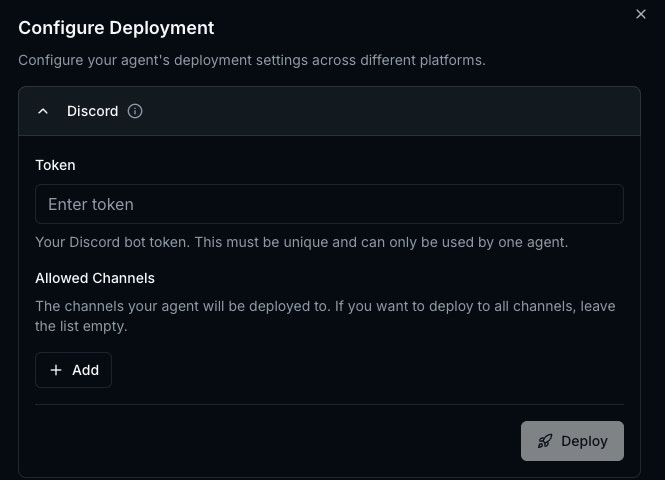
Go to your agent's deployment settings in Eden:
1. Select Discord
2. Paste the Discord Token you copied earlier
### Configure Eden Deployment
Go to your agent's deployment settings in Eden:
1. Select Discord
2. Paste the Discord Token you copied earlier
 ### Set Up Allowed Channels
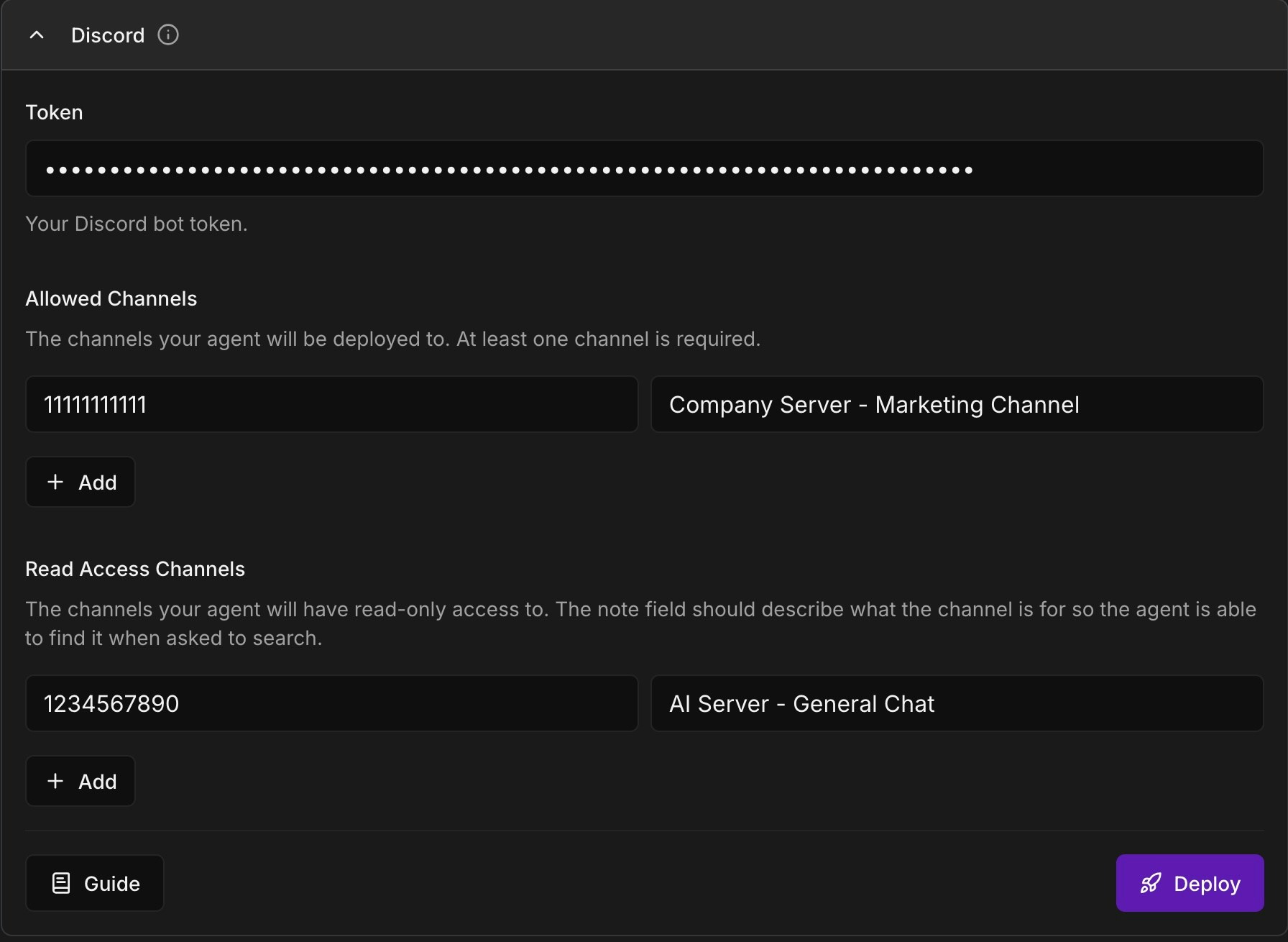
You need to set up specific channels that your bot is allowed to access. The 'Allowed Channels' field is a list of channels your agent will be able to read and post to, and 'Read Access' is a list of channels your agent will be able to read from (but not post to).
The note field is a description of the channel that would be helpful for you to give to your agent to tell it where to read or post. A good note is something like "AI Server - General Chat", "Company Server - Marketing Channel", etc.
### Set Up Allowed Channels
You need to set up specific channels that your bot is allowed to access. The 'Allowed Channels' field is a list of channels your agent will be able to read and post to, and 'Read Access' is a list of channels your agent will be able to read from (but not post to).
The note field is a description of the channel that would be helpful for you to give to your agent to tell it where to read or post. A good note is something like "AI Server - General Chat", "Company Server - Marketing Channel", etc.
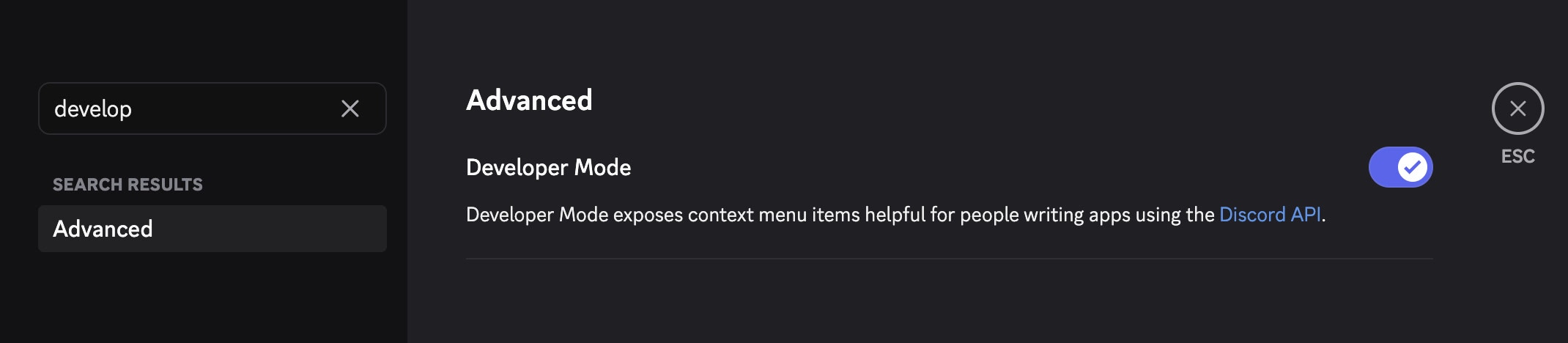
 To find the channel IDs, first, enable Developer Mode in Discord:
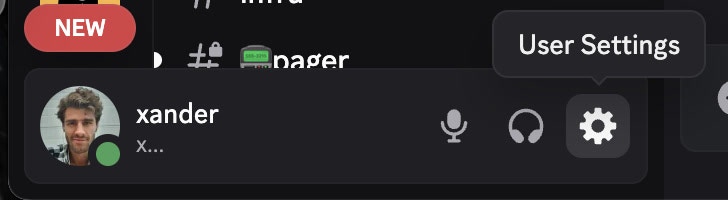 Search for "developer" and activate developer mode in advanced settings:
 To add channels:
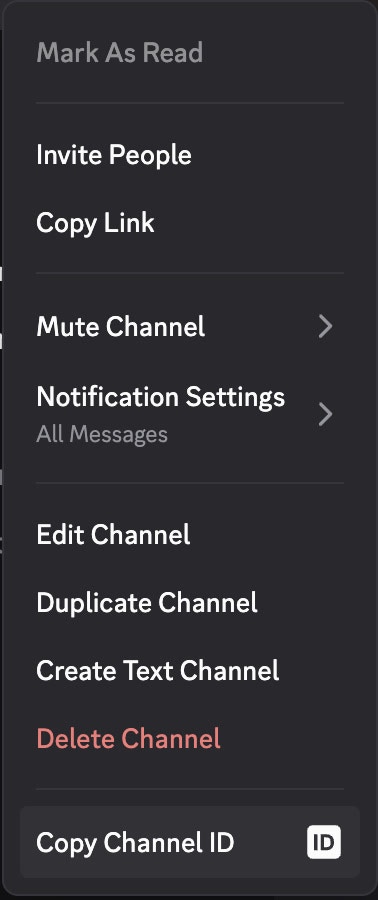
1. Right-click any channel name in Discord
2. Select "Copy Channel ID"
3. Add the ID to "Allowed Channels" in Eden
4. Add a label for the channel so you remember it
To add channels:
1. Right-click any channel name in Discord
2. Select "Copy Channel ID"
3. Add the ID to "Allowed Channels" in Eden
4. Add a label for the channel so you remember it
 Click "Deploy" when you're done.
Alternatively, you can copy the channel URL, and the ID will be the last number in the URL. For example, if the URL is [https://discord.com/channels/111111111/1234567890](https://discord.com/channels/111111111/1234567890), the ID is 1234567890.
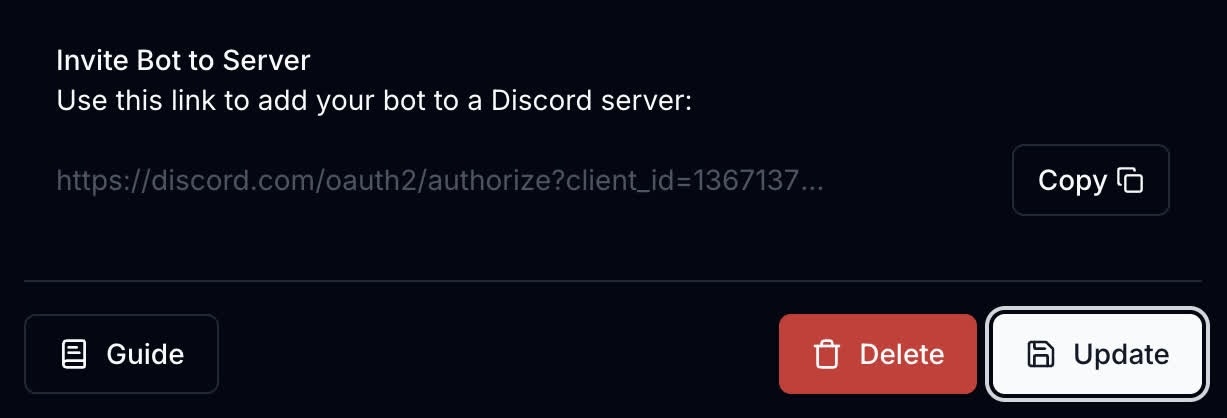
After successful deployment:
1. Copy the "Invite Bot to Server" link from Eden
2. Paste it into a browser
3. Select your server and add the bot
Click "Deploy" when you're done.
Alternatively, you can copy the channel URL, and the ID will be the last number in the URL. For example, if the URL is [https://discord.com/channels/111111111/1234567890](https://discord.com/channels/111111111/1234567890), the ID is 1234567890.
After successful deployment:
1. Copy the "Invite Bot to Server" link from Eden
2. Paste it into a browser
3. Select your server and add the bot
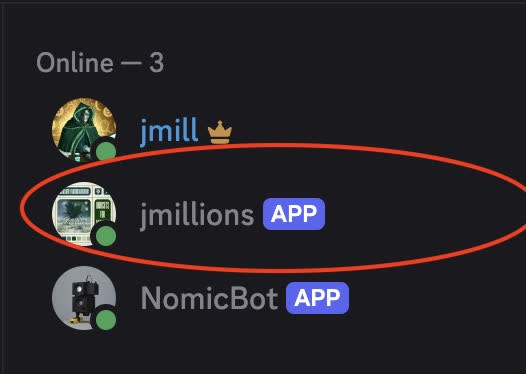
 Your bot will show as "Online" in your Discord server sidebar when ready.
 ## Testing Your Agent
Go to one of the allowed channels and mention your bot in a message. If it responds, you're all set!
## Using the Discord Tools
The following tools are available for your agent to use once it is deployed to Discord:
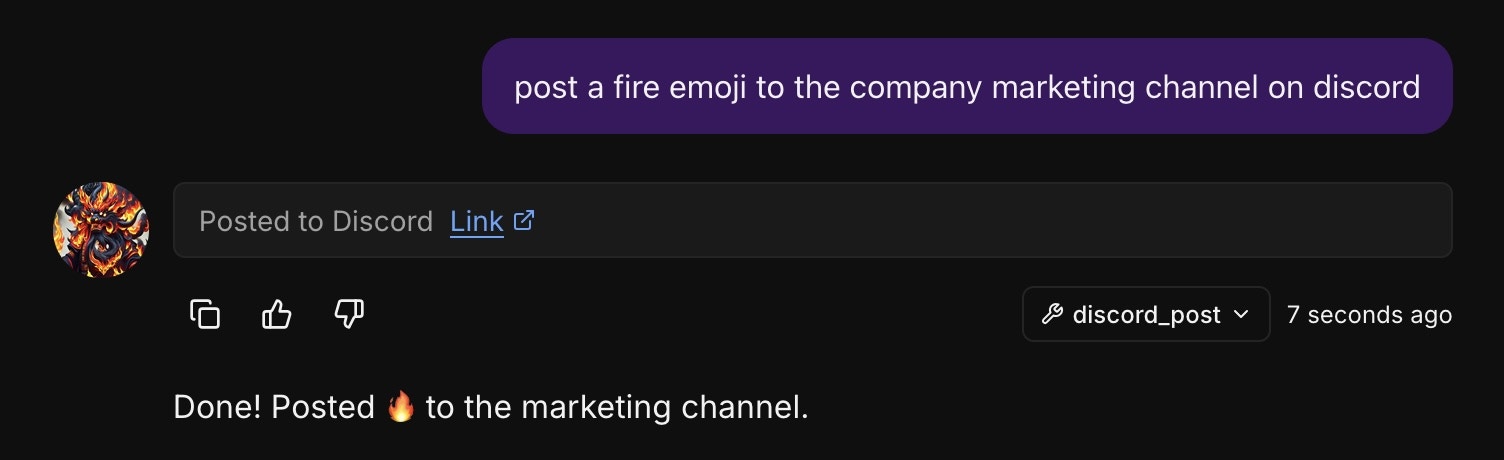
* `discord_post` - Post a message to a channel
* `discord_search` - Search for messages in a channel
You can use these in a conversation with your agent.
## Testing Your Agent
Go to one of the allowed channels and mention your bot in a message. If it responds, you're all set!
## Using the Discord Tools
The following tools are available for your agent to use once it is deployed to Discord:
* `discord_post` - Post a message to a channel
* `discord_search` - Search for messages in a channel
You can use these in a conversation with your agent.
 ## Troubleshooting
Common issues:
* Check the bot has "Send Messages" permissions in the channel
* Verify the channel ID is in the allowed channels list
* Ensure gateway intents are enabled
* Ensure the bot shows 'online' in the channels you are trying to get it to respond in. If the bot does not show in the sidebar and online, it does not have access to the channel.
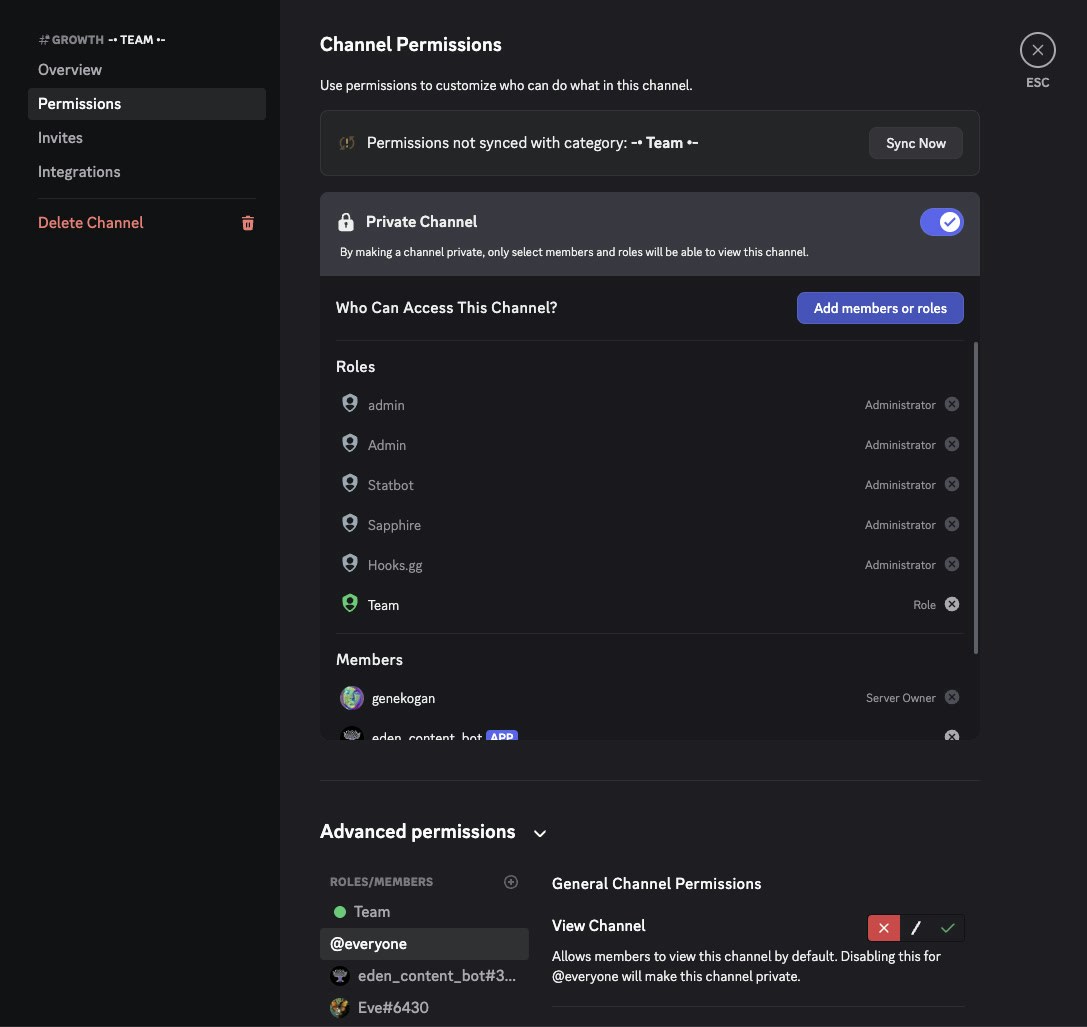
For private channels, manually add the bot as a member:
1. Right-click the channel and click "Edit Channel"
## Troubleshooting
Common issues:
* Check the bot has "Send Messages" permissions in the channel
* Verify the channel ID is in the allowed channels list
* Ensure gateway intents are enabled
* Ensure the bot shows 'online' in the channels you are trying to get it to respond in. If the bot does not show in the sidebar and online, it does not have access to the channel.
For private channels, manually add the bot as a member:
1. Right-click the channel and click "Edit Channel"
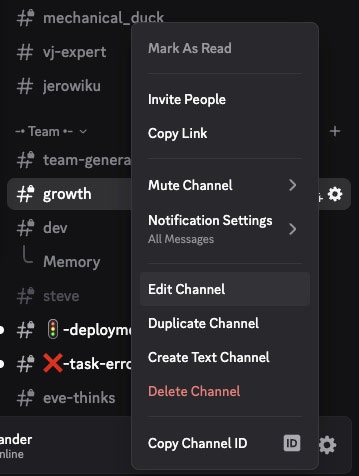 2. Go to Permissions → Add Members → Add your bot